Start with the right expectation
Malware INFO is a local-first Windows investigation application. It combines Threat Lookup, Scan Studio, Zero-Day Analysis, Live Protection evidence, Quarantine Vault, Reports & Evidence, and licensed Advanced Analysis tools.
It does not make unknown code safe to run on your normal computer, and it does not replace antivirus, EDR, XDR, SIEM, or an isolated analysis lab.
Never execute an unknown file on an everyday or production computer. Live analysis belongs only in an authorized disposable VM or approved sandbox.
1. Check Command Center
Open Malware INFO from its tray icon and review Command Center. Confirm the active edition, license state, Live Protection status, and scan-engine status before beginning an investigation.
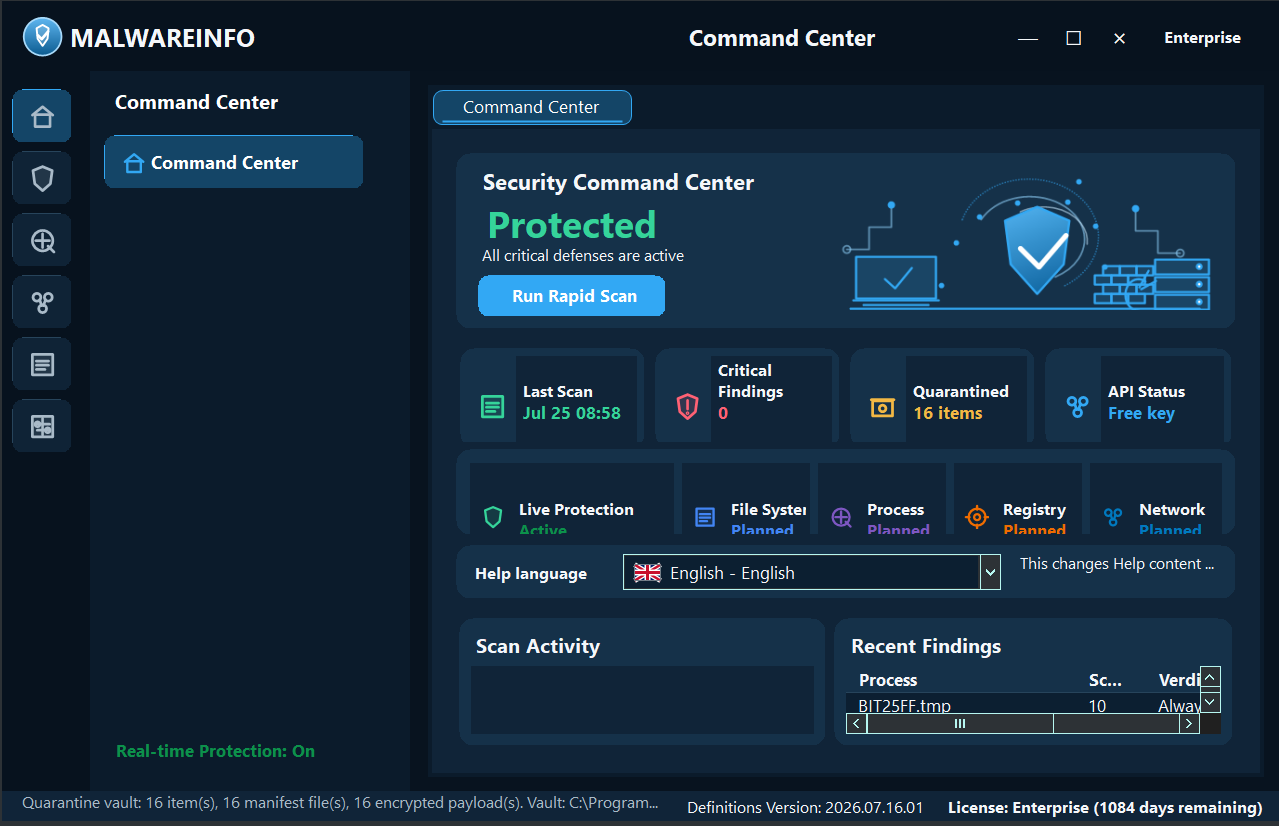
Professional and Enterprise systems show Live Protection availability. A red tray shield is an attention state: it can indicate Free Edition, paused/disabled protection, or a disabled scan engine. It is not by itself a malware alert.
2. Preserve the suspicious file’s identity
Before changing, moving, or executing the file, record:
- Original file name and path
- File size
- SHA-256
- Source and discovery time
- The user, alert, email, download, or process that led to the file
- Any antivirus or EDR action already taken
This information lets another analyst verify that later lookup, scan, quarantine, and report evidence refers to the same object.
3. Use Lookup when policy permits
Lookup can review hashes, files, URLs, domains, and IP addresses. Begin with a hash when possible because it provides reputation context without uploading the complete file.
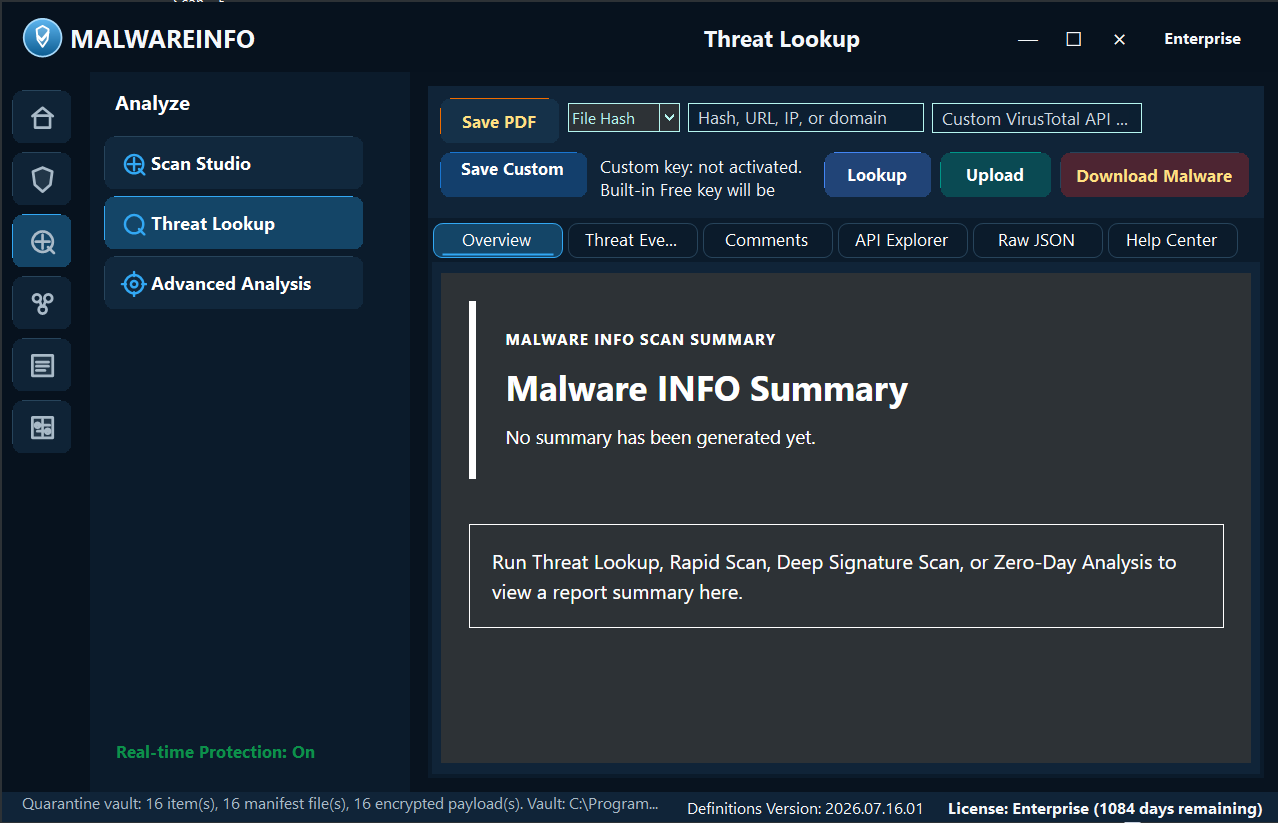
Review the summary, detection ratio, comments, relationships, and raw evidence together. A third-party reputation result is intelligence context—not an automatic local verdict.
Uploading a file is a separate explicit action. Do it only when your organization permits sharing that file with the selected service.
4. Run layered local scans
Use Rapid Scan for known-bad hash evidence and Deep Signature Scan for HEX signatures and YARA rules. Choose only the scope needed for the case.
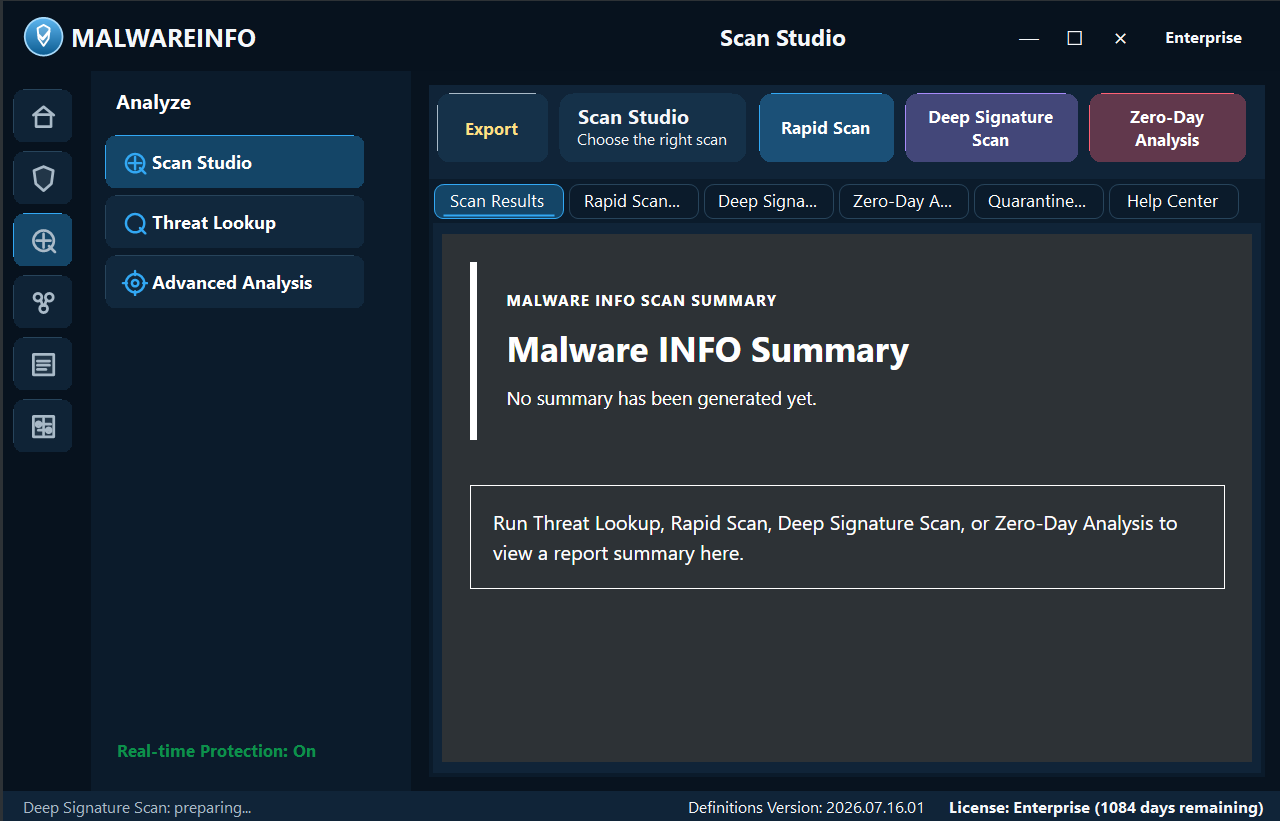
Confirmed hash, HEX, or YARA evidence can support containment. Heuristic and Zero-Day findings require analyst review. Always read the engine, source, reason, path, signer, and related activity before acting.
5. Correlate with Zero-Day and Guard evidence
Zero-Day Analysis and Live Protection can add process, command-line, trust, persistence, registry, network, file, timeline, and executable-memory context.
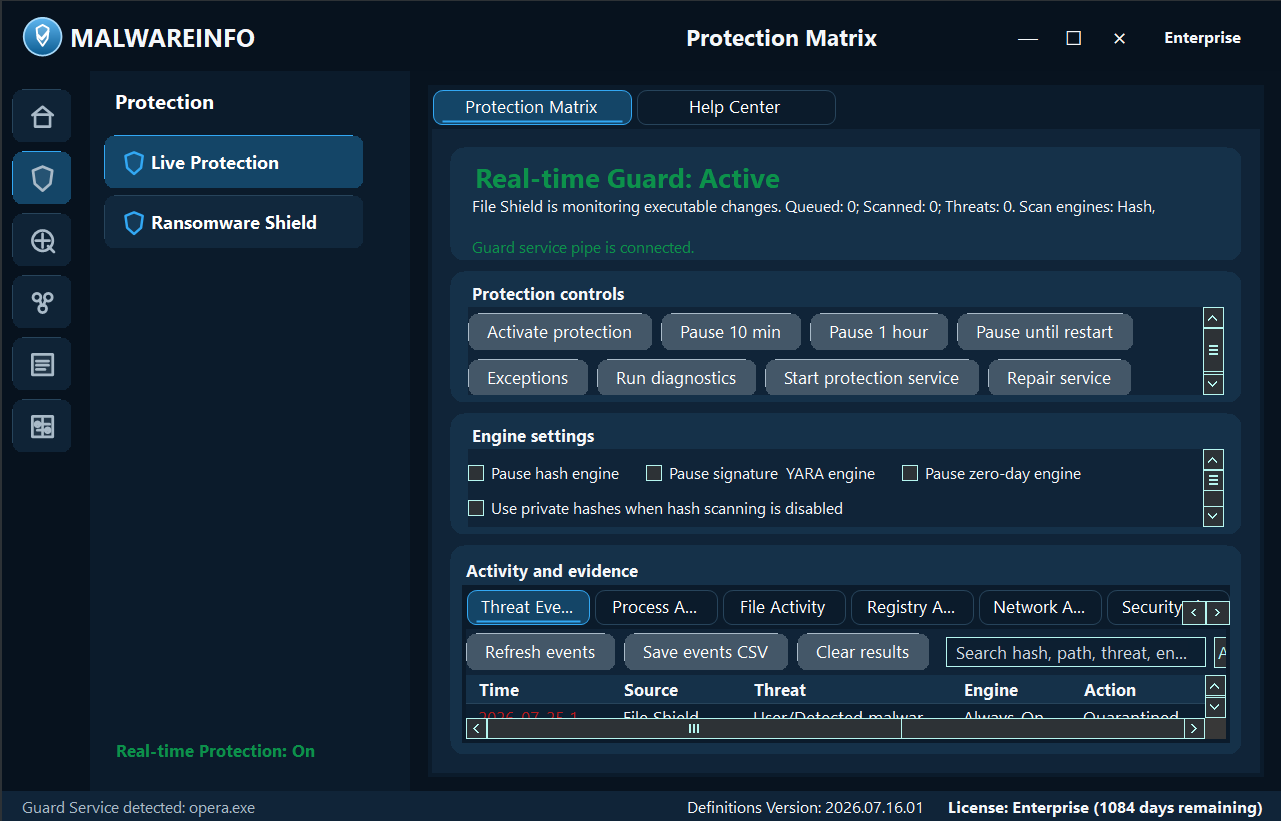
Interpret the decision labels carefully:
- Observed means activity was recorded without a malicious verdict.
- Allowed means current policy did not block the event; it does not certify safety.
- AlertOnly means review is required but automatic containment was not justified.
- Detected means a configured confirmed-detection source matched.
- Quarantined means a supported file moved into protected containment.
One row rarely tells the whole story. Correlate parent/child processes, file writes, persistence, registry changes, network activity, signer state, and confirmed scan evidence.
6. Contain only after review
Quarantine is containment, not permanent deletion. Before restoring or deleting an item, confirm its hash, source, detection reason, business purpose, and related activity.
Do not restore an uncertain file directly into an active startup path, service path, Run key, scheduled task, or production location. Restoring a file does not automatically make it trusted.
7. Export an analyst-readable handoff
Use the product’s report/export workflow and retain the manifest and SHA-256 inventory. Record the case ID, source computer, product version, edition, UTC collection time, analyst, evidence gaps, and any AV action.
Reports, dumps, and archives may contain real malicious bytes or secrets. Transfer them only through an organization-approved evidence channel.
When to use Enterprise deep-analysis tools
Memory Payload Capture, Payload & Memory Analyzer, Guided API Trace, and Deep API Trace are selected-process Enterprise workflows. Use them only when ordinary Threat Lookup, Scan Studio, and Live Protection evidence cannot answer the approved investigation question.
Safe Trace is least invasive. Deep Trace changes target timing and may trigger anti-debug behavior. Begin with Safe Trace and choose Deep only when supported exact API entry/return evidence is necessary and the isolated lab accepts the impact.
Continue learning
Open the in-app Help for edition details, complete workflows, evidence terminology, troubleshooting, and safe-lab guidance. Help is currently available in 22 languages.
You can also review the complete website FAQ and edition feature comparison.